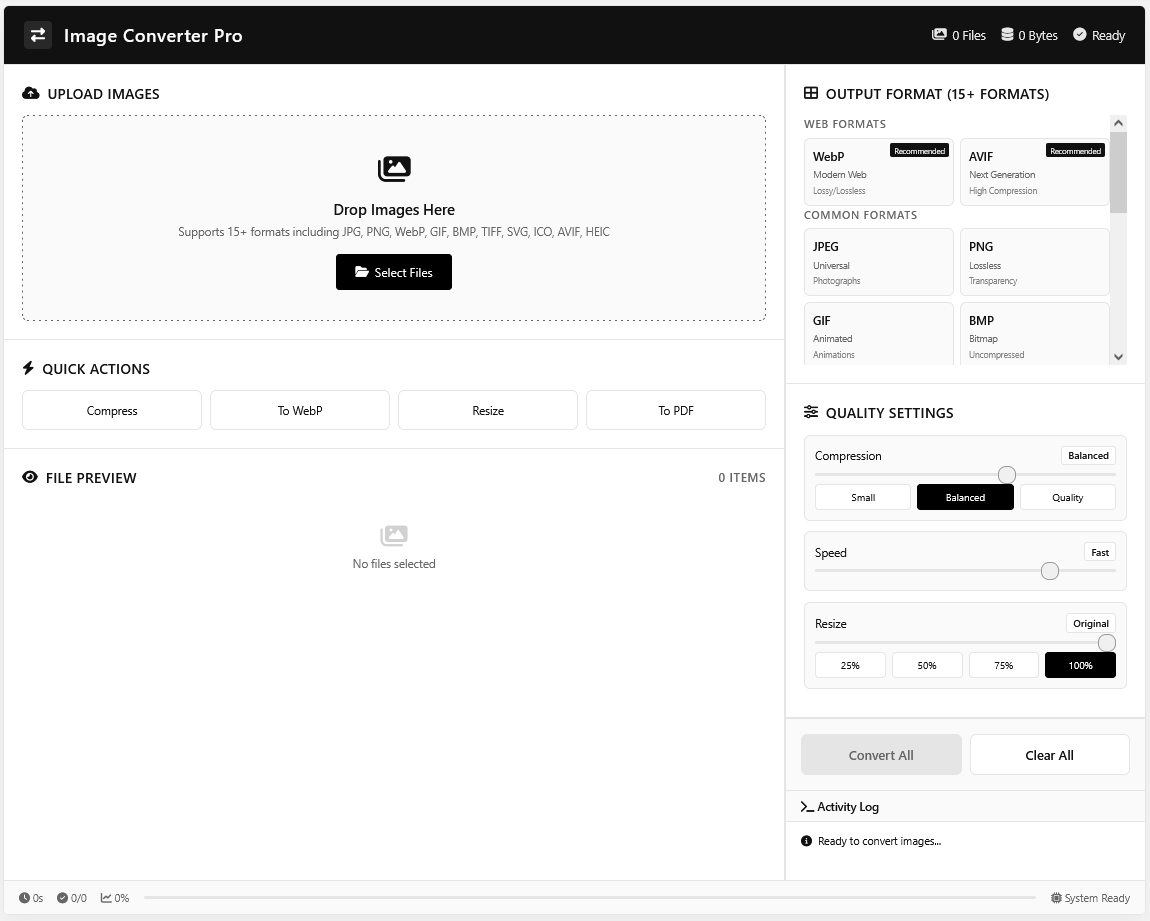
A free image converter is a browser-based tool that lets you change an image’s file format such as JPG to PNG or HEIC to JPG without installing software or uploading files to a server. Image Converter Pro on GD Graphic supports 15+ formats, processes everything locally for full privacy, and adds batch conversion, compression, and PDF creation in one free tool.
If you’ve ever hit a wall trying to open an iPhone photo on a Windows PC, upload a PNG where only JPG is accepted, or shrink a bloated image for a faster website, the problem is always the same: the wrong format for the job. A free image converter solves that instantly, and understanding which format to use — and when — saves you time on every project going forward.
Why image format matters more than most people realize
Every image format is a trade-off between file size, quality, and compatibility. Using the wrong one silently costs you:
Page speed — an unoptimized PNG can be 5–10x larger than a WebP of the same image, slowing down Core Web Vitals.
Compatibility — HEIC photos from an iPhone often won’t open on Windows or in many web browsers.
Print quality — heavily compressed JPGs can look blocky or blurry when printed at scale.
Storage space — RAW and TIFF files from cameras can be hundreds of megabytes each.
Picking the right format isn’t a technical afterthought — it’s part of doing the job properly, whether you’re a designer, developer, or just organizing your own photo library.
What is Image Converter Pro?
Image Converter Pro is GD Graphic’s free, browser-based image conversion tool. Unlike most “free” converters that quietly upload your files to a remote server, it runs the entire conversion process locally on your device using your browser’s own processing power.
Regardless of which formats you’re converting between, the workflow is the same:
Upload your images — drag and drop files or select them from your device.
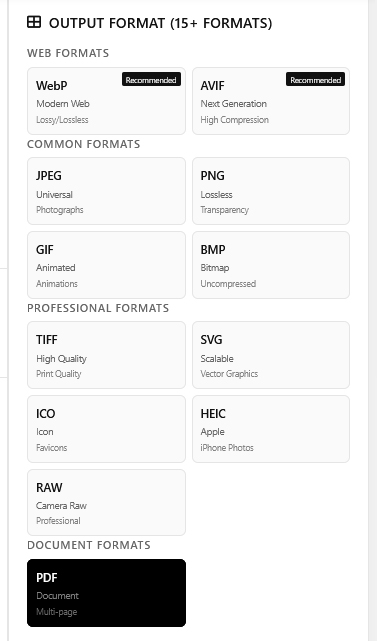
Choose your output format — pick from web formats (WebP, AVIF), common formats (JPG, PNG), or professional/document formats (TIFF, PDF).
Set quality and resize options — choose a compression level and optionally resize to a percentage of the original.
Convert and download — click “Convert All” and download your finished files, individually or as a batch.
No installation, no watermark, and no waiting on a server queue.
JPG to PNG: When You Need Transparency
Converting JPG to PNG is the right move whenever transparency matters — logos, product cutouts, icons, or any graphic that needs to sit cleanly over another background. JPG doesn’t support transparency and uses lossy compression, so re-exporting a logo as PNG preserves sharp edges and a clean, see-through background.
Use JPG to PNG when:
You need a transparent background
The image contains sharp lines, text, or flat colors (logos, screenshots)
Lossless quality matters more than file size
PNG to WebP: The Web Speed Upgrade
PNG to WebP
PNG to WebP conversion is one of the highest-impact changes you can make for website performance. WebP typically cuts file size by 25–80% compared to PNG or JPG while keeping visual quality nearly identical, which directly improves Largest Contentful Paint (LCP) — a core Google ranking signal.
Format
Typical File Size
Transparency
Best Use
PNG
Large
Yes
Logos, graphics needing transparency
JPG
Medium
No
Photos, general web images
WebP
Small
Yes
Modern websites, fast-loading pages
AVIF
Smallest
Yes
Cutting-edge sites prioritizing Core Web Vitals
For an even leaner site footprint, pair converted images with GD Graphic’s Favicon Generator so your entire visual identity — from hero images to the browser tab icon — stays optimized.
HEIC to JPG: Fixing the iPhone Compatibility Problem
Apple’s HEIC format compresses beautifully, but it isn’t universally supported. Many Windows apps, older devices, and some websites simply won’t open it. Converting HEIC to JPG takes seconds and guarantees the photo opens anywhere — no quality loss, no compatibility guesswork.
Common reasons to convert HEIC to JPG:
Uploading iPhone photos to a website or CMS
Sharing photos with someone on Windows or Android
Submitting images to platforms that reject HEIC files
Batch Converting Multiple Images at Once
Manually converting one file at a time is fine for a single photo — but not for a client project, a product catalog, or an old photo library. Image Converter Pro’s batch mode processes up to 50 files simultaneously, applying the same output format and compression settings across the entire set. This is the difference between a five-minute task and a two-hour one.
Converting Images to PDF
Beyond format conversion, Image Converter Pro can combine several images into a single, ordered PDF — useful for portfolios, invoices, scanned documents, or presentations. Enable “Combine All into Single PDF” and “Sort by Filename” before converting to keep pages in the correct order automatically.
RAW and Professional Formats
Photographers working with camera RAW files know they’re too large and unwieldy for web or client delivery straight out of the camera. Image Converter Pro converts RAW files into JPEG or TIFF, giving you a fast path from “camera card” to “client-ready gallery” without opening dedicated editing software.
Why Local, No-Upload Conversion Is the Safer Choice
Many free online converters route your files through a remote server — which means your images, even sensitive ones, briefly exist on someone else’s infrastructure. Because Image Converter Pro processes files entirely in your browser, nothing is ever uploaded. This matters most when converting:
Client work under NDA
Personal or family photos
Business documents and scanned contracts
Anything you simply don’t want stored on a third-party server
Choosing the right format: quick reference
Your Goal
Best Format
Fastest-loading web images
WebP or AVIF
Logos/icons with transparency
PNG
General photography
JPG
Universal compatibility
JPG or PDF
Print-quality archiving
TIFF
Browser tab icon
ICO
Frequently Asked Questions (FAQs)
Is this free image converter really free to use?
Yes. Image Converter Pro is 100% free with no sign-up, subscription, or hidden watermark. All formats, batch conversion, and PDF features are included at no cost.
Do my images get uploaded to a server?
No. All conversion happens locally inside your browser, so your files never leave your device — a meaningful privacy advantage over most online converters.
What’s the best image format for a website?
WebP or AVIF, since both offer significantly smaller file sizes than JPG or PNG with minimal visible quality loss, which improves page load speed and Core Web Vitals scores.
Can I convert more than one image at a time?
Yes. The batch converter processes up to 50 files at once with the same format and quality settings applied across all of them, saving significant time on larger projects.