How to create a favicon for free: a step-by-step guide for beginners
Quick answer: To create a favicon for free, upload a square image (512×512px or larger works best) to an online favicon generator, pick the sizes you need 16×16, 32×32, and 180×180 cover most cases download the files, drop them into your website’s root folder, and paste the generator’s HTML code into your site’s <head> section.
That covers the basics. But if you’ve ever uploaded a favicon and had it come out blurry, cropped weirdly, or just refuse to show up at all, you know there’s more to it than that one paragraph suggests. Let’s go through it properly.
What is a favicon, and does it actually matter?
A favicon is that tiny icon sitting in your browser tab. It shows up in bookmarks too, and lately Google has started displaying it right next to your page title in mobile search results — which is a bigger deal than most people realize.
Here’s the thing: when a browser can’t find a favicon, it just shows a blank generic page icon instead. It’s a small detail, but it’s the kind of small detail that makes a site feel unfinished. I’ve seen plenty of otherwise well-built websites lose a bit of credibility just because of this one overlooked file.
A few reasons it’s worth fixing:
It helps people find your tab when they’ve got fifteen others open
Google shows it in mobile search results now, so it can nudge your click-through rate
Sites without one can come across as a little less trustworthy, even if that’s not fair
Every bookmark or home-screen shortcut is free brand reinforcement
Get your source image right first
Most favicon problems don’t start at the generator — they start with the image you feed it. Fix this step and everything downstream gets easier.
You want a square image, ideally 512×512 pixels or bigger (an SVG is even better if you have one). Rectangular images get stretched or cropped in ways you won’t like. Keep the design simple and high-contrast — fine text, gradients, and busy detail all disappear once the image shrinks down to 16 pixels.
One thing beginners get wrong constantly: they try to use their full logo, text and all. Don’t. If your logo has a symbol and a wordmark together, pull out just the symbol. Text becomes an unreadable smudge at favicon size, no matter how good it looks on your homepage.
The actual steps
Crop your image to a square and simplify anything that won’t survive shrinking.
Upload it to a free favicon generator. Most handle JPG, PNG, SVG, even WebP these days.
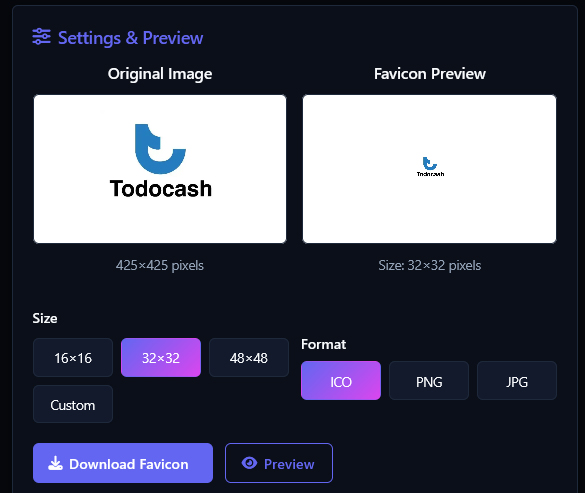
Preview it at real size before you commit. What looks sharp at full screen can turn into an unrecognizable blob at 16×16 — this step catches that before it’s live.
Pick your sizes. At minimum go with 16×16, 32×32, and 180×180 for Apple. Building a PWA? Add 192×192 and 512×512 too.
Download the package — usually a ZIP with favicon.ico, a few PNGs, apple-touch-icon.png, and sometimes a site.webmanifest.
Upload everything to your site’s root directory, or wherever your CMS keeps static files.
Paste the HTML snippet the generator gives you into your <head> tag.
Hard-refresh — Ctrl+F5 on Windows, Cmd+Shift+R on Mac. A regular refresh usually won’t cut it, because favicons get cached hard.
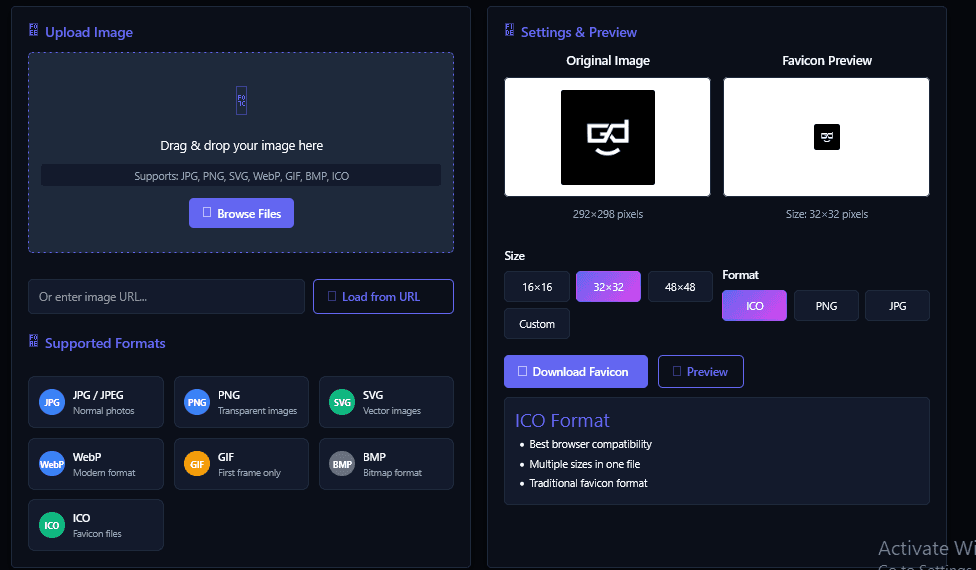
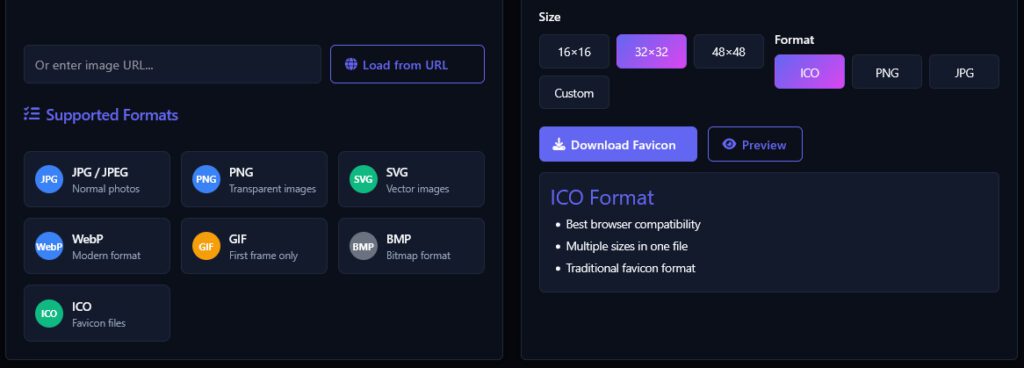
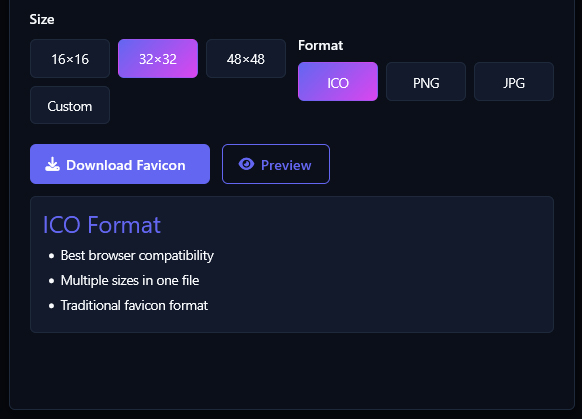
favicon generator
PNG or ICO? It still matters
PNG is the more common starting point because it supports transparency — your icon can blend into a dark tab bar instead of sitting on an ugly white box. (Already have an image in the wrong format? Our free Image Converter handles PNG, ICO, and a dozen other formats in a couple of clicks.) But a lot of browsers and older platforms still expect a proper .ico file, which has one advantage PNG doesn’t: it can pack several sizes (16×16, 32×32, 48×48) into one file, and the browser just grabs whichever it needs.
Converting PNG to ICO isn’t complicated:
Start with a square PNG, at least 256×256px
If you’re not sure which sizes you’ll need, just select them all
Want your favicon to match your brand colors exactly? Pull the HEX codes first with our Color Palette Generator
Rename the file favicon.ico
Reference it with <link rel="icon" href="/favicon.ico" type="image/x-icon">
Favicon sizes: a quick reference
This trips people up more than anything else. Here’s what each size is actually for:
If in doubt, go bigger on the source image. You can always scale down cleanly — scaling up a small image never looks good, no matter which tool you use.
Don’t skip the Apple touch icon
Here’s something a lot of people miss entirely: when someone saves your site to their iPhone home screen, iOS doesn’t touch your regular favicon at all. It specifically looks for a 180×180 Apple touch icon. No icon there, and iOS just grabs a screenshot of your page and slaps it on the home screen instead — not exactly the branding you were going for.
Use a high-res square source, ideally 512×512, so it scales down cleanly
Skip transparency — iOS adds its own background and rounds the corners itself anyway
The reference tag: <link rel="apple-touch-icon" sizes="180x180" href="/apple-touch-icon.png">
Installing it, platform by platform
Plain HTML sites: drop the files in the same root folder as your index.html
WordPress: Appearance → Customize → Site Identity, then upload right there in the dashboard
Shopify: Online Store → Themes → Customize → Theme Settings
Wix or Squarespace: there’s a favicon upload field tucked into your site or SEO settings
If you’re coding a site by hand, this is roughly what the full head block looks like:
Almost every time someone runs into this, it’s not actually broken. It’s just cache. Browsers hang onto favicons more stubbornly than they hang onto almost anything else on a page.
Work through this in order and it’ll usually sort itself out:
Hard-refresh: Ctrl+F5 (Windows) or Cmd+Shift+R (Mac)
Clear your browser cache fully and reopen the tab
If you’re running a CDN like Cloudflare, purge that cache too
Double check the file path in your HTML actually points to where the file is sitting on your server
Skip the manual work
Honestly, if you don’t want to fuss with resizing and renaming files by hand, this favicon generator above does the whole set ICO, PNG, Apple touch icon from one upload. No signup, no watermark on the output.
Frequently asked questions
1. How do I create a favicon for free?
Upload a square image to a free favicon generator, pick your sizes (16×16, 32×32, and 180×180 cover the basics), download the files, and add the HTML snippet to your site’s <head>.
2. What’s the best image format to start with?
PNG, in most cases — it supports transparency so your icon works on light and dark tab bars alike. If you have an SVG, even better, since it scales without any quality loss.
3. What size should my favicon actually be?
Start with a source image at least 512×512 pixels. From there you can generate the full set: 16×16, 32×32, 180×180, 192×192, and 512×512.
4. Why isn’t my new favicon showing up after I uploaded it?
Nine times out of ten, it’s browser caching. Hard-refresh, clear your cache, and check that your HTML is pointing to the correct file path.
5. Do I really need a separate icon for iPhones?
Yes — that’s the Apple touch icon, 180×180, no transparency. Skip it and iOS falls back to a generic screenshot instead of your actual branding.